How to Make a WiFi QR Code for Your Guests
Make a WiFi QR code guests can scan to join your network without typing the password. Free and private in your browser, plus a printable card.
When the QR code is already on your screen, your camera can't help. Here's how to read it from a screenshot or photo, and what to check before you open the link.
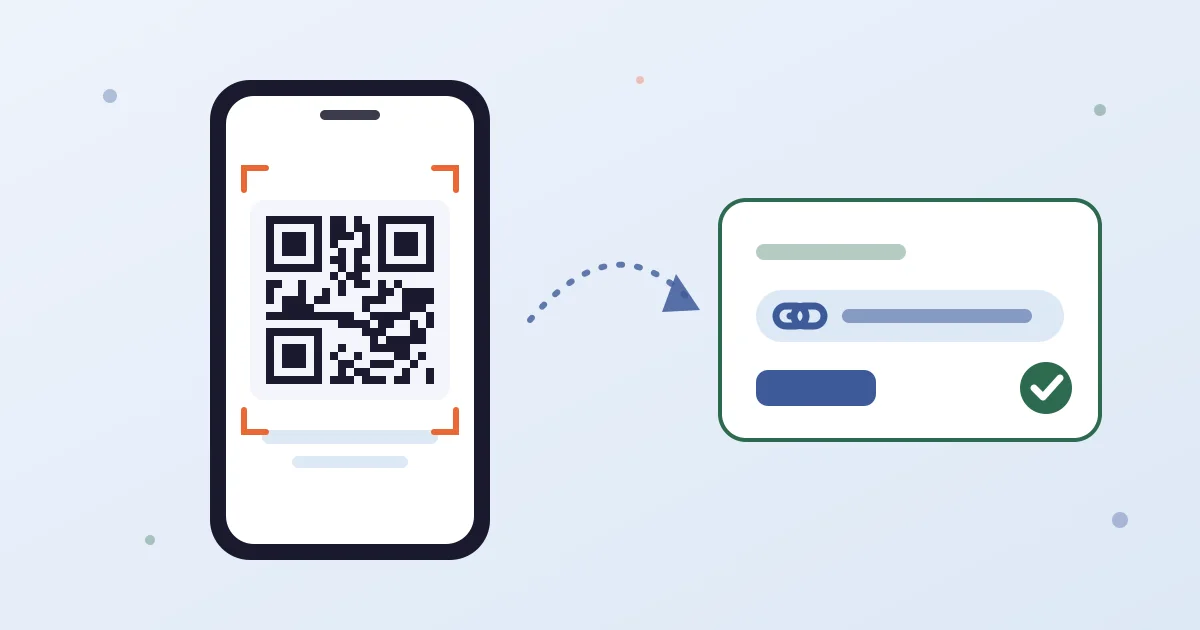
Someone texts you a QR code, a ticket arrives as an image, or a sign-up page shows a code on the same phone you'd use to scan it. Phone cameras are made for codes in front of them: Apple's iPhone guide, for example, describes scanning with the Camera app or Control Center. A code that's already on your screen needs a different route. Here's how to read one from a screenshot, photo or saved image, on a phone or a computer, and how to check where it leads before you open it.
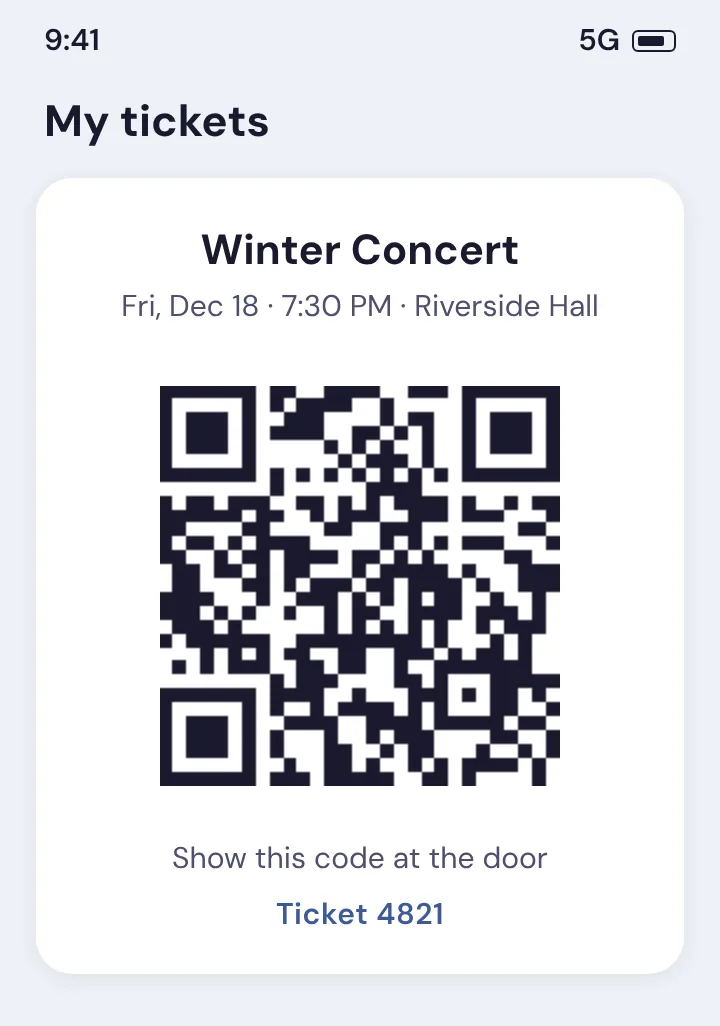
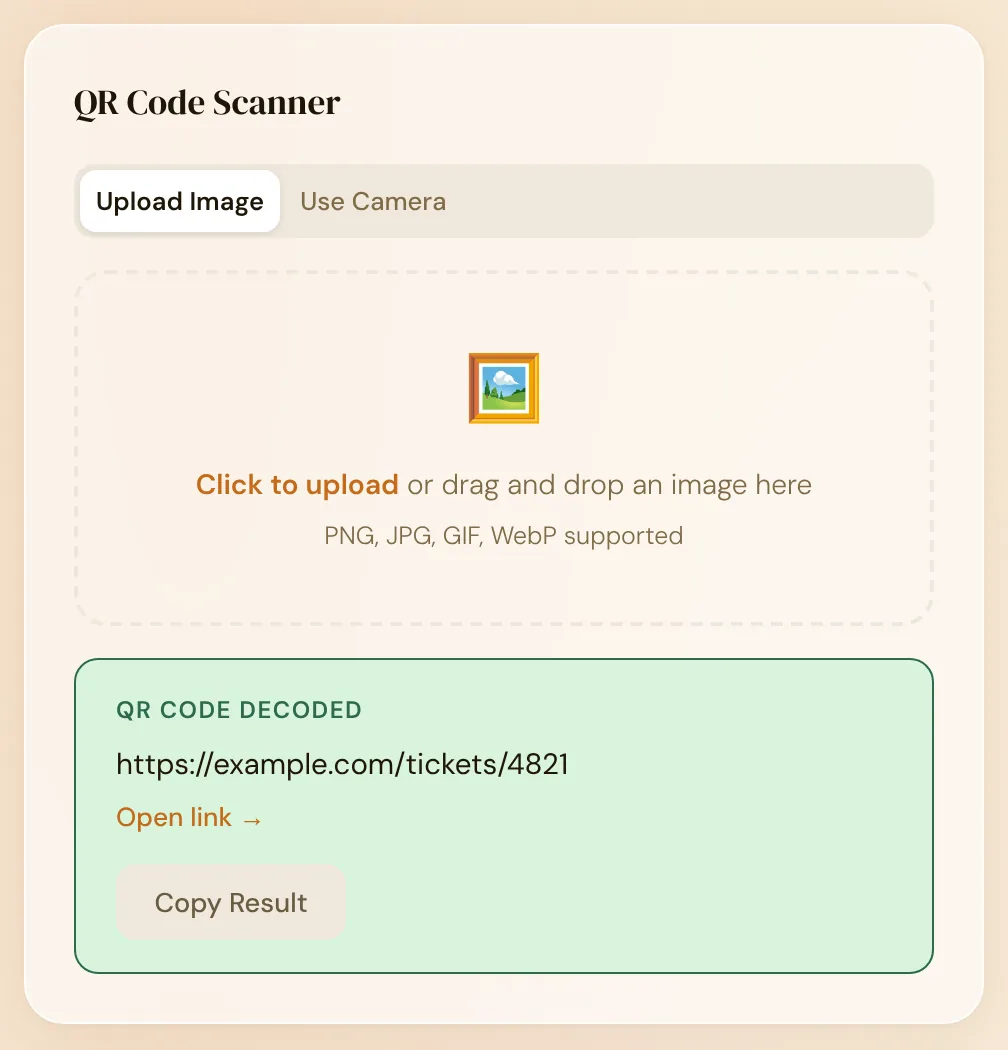
The image is read in your browser and isn't uploaded, so it's fine to use for tickets and other codes you'd rather keep to yourself.
On a computer, you don't need your phone at all. If the code is an image in an email or on a web page, right-click it and save the image (most browsers call this Save image as), then drag the saved file onto the scanner. If the code can't be saved on its own, for example because it's part of a larger picture or a document, take a screenshot of the part of the screen that shows it, save that as a file and scan it instead. Either way, the image stays on your computer.
A QR code hides its destination until it's decoded, which is why scammers like them. The FTC warns that some cover real QR codes on parking meters with their own, and others send codes by text or email with an urgent story, such as a missed delivery or a password problem.
The scanner never opens anything by itself: it shows the full content and waits for you. Before you tap Open link:
QR codes can hold other things, and the scanner shows them as text:
The Open link button only appears for web addresses that start with http:// or https://. For everything else, use Copy Result.
If the code is on your laptop or a TV and your phone is free, switch the scanner to Use Camera and tap Start Camera. Your browser asks for permission first. The scanner uses the back camera, reads the first code it sees and then stops the camera, so you can check the result before doing anything with it.
Yes. Take a screenshot, open the QR Code Scanner in your phone's browser, tap the upload area and pick the screenshot. The code is read on your phone and the image isn't uploaded.
Check it first. The scanner shows the full address before anything opens, so you can read the site name and look for misspellings. Be wary of codes in unexpected texts or emails.
Usually the image is blurry, the code is cut off or too small, or there's more than one code in the picture. Use a sharp screenshot, keep the whole code in view and crop to one code.
Yes. It shows whatever text the code holds, such as WiFi details or a contact card. The Open link button only appears for web addresses; use Copy Result for the rest.