How to Scan a Barcode Online From a Photo or Camera

Read a barcode straight from a photo, a screenshot or your camera without installing an app, and find out what the number can and can't tell you.
ยท 4 min read

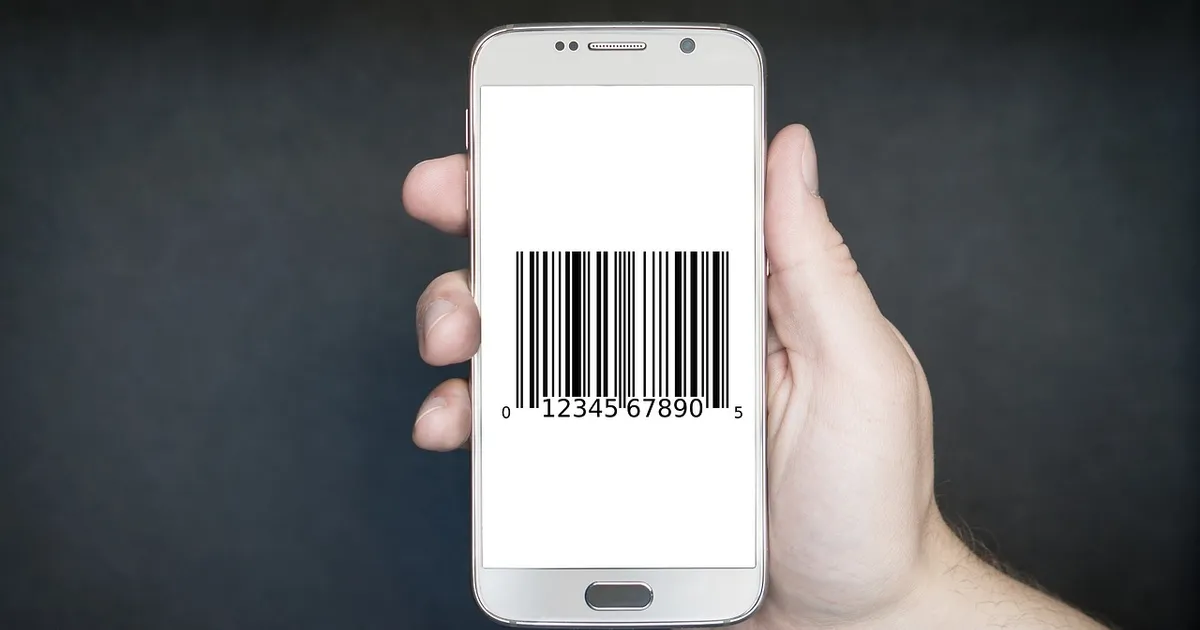
A hand holding a smartphone that shows a barcode on its screen
Photo by Tumisu on Pixabay (Pixabay Content License)

Maybe a friend sent you a photo of something they want, a parcel label needs checking, or you just want the number under a barcode without installing yet another scanner app. You can read a barcode straight from a photo, a screenshot or your camera, right in the browser. Here's how, which kinds of barcode work, and what the numbers can and can't tell you.
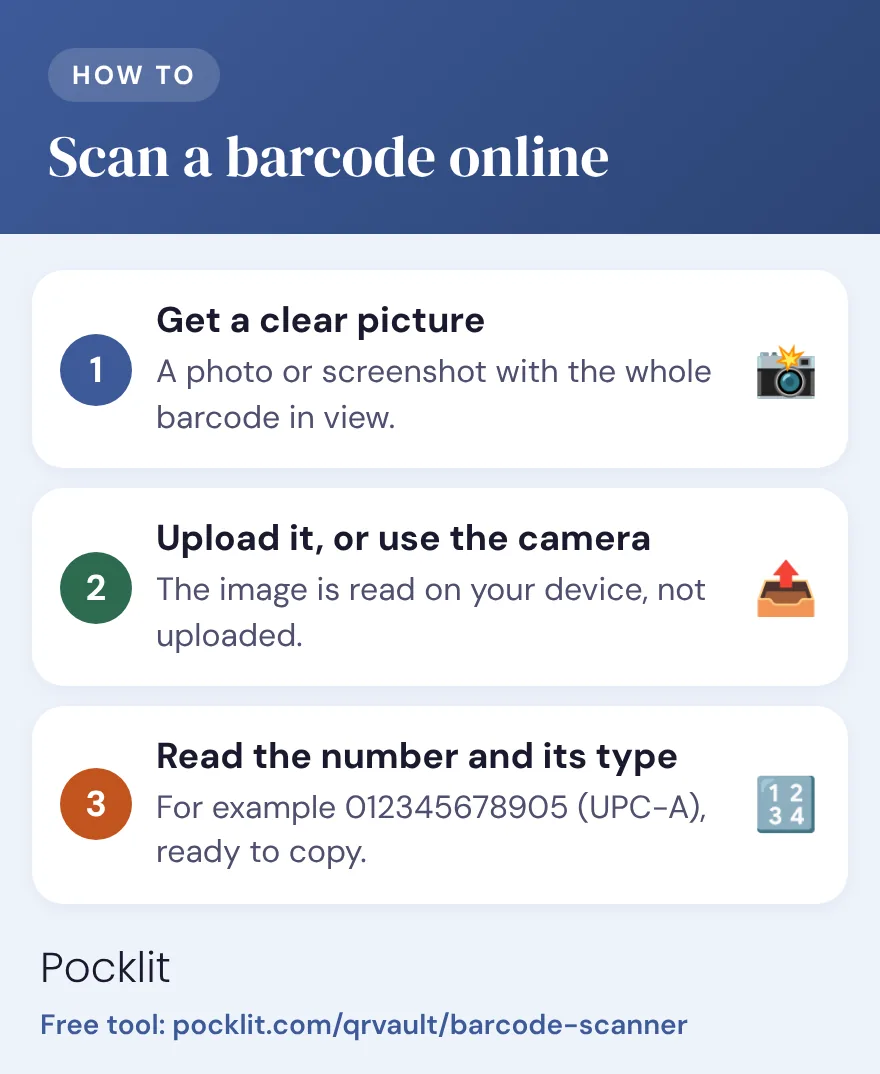
Scan a barcode online: 1. Get a clear picture: A photo or screenshot with the whole barcode in view. 2. Upload it, or use the camera: The image is read on your device, not uploaded. 3. Read the number and its type: For example 012345678905 (UPC-A), ready to copy. Free tool at pocklit.com/qrvault/barcode-scanner.
The steps at a glance.

Scan a barcode from a photo or screenshot

  1. Open the Barcode Scanner. Upload Image is already selected.
  2. Tap or click the upload area and choose the photo or screenshot. On a phone, you can pick it from your photo library; on a computer, you can also drag the file onto the box. PNG, JPG, GIF and WebP images all work.
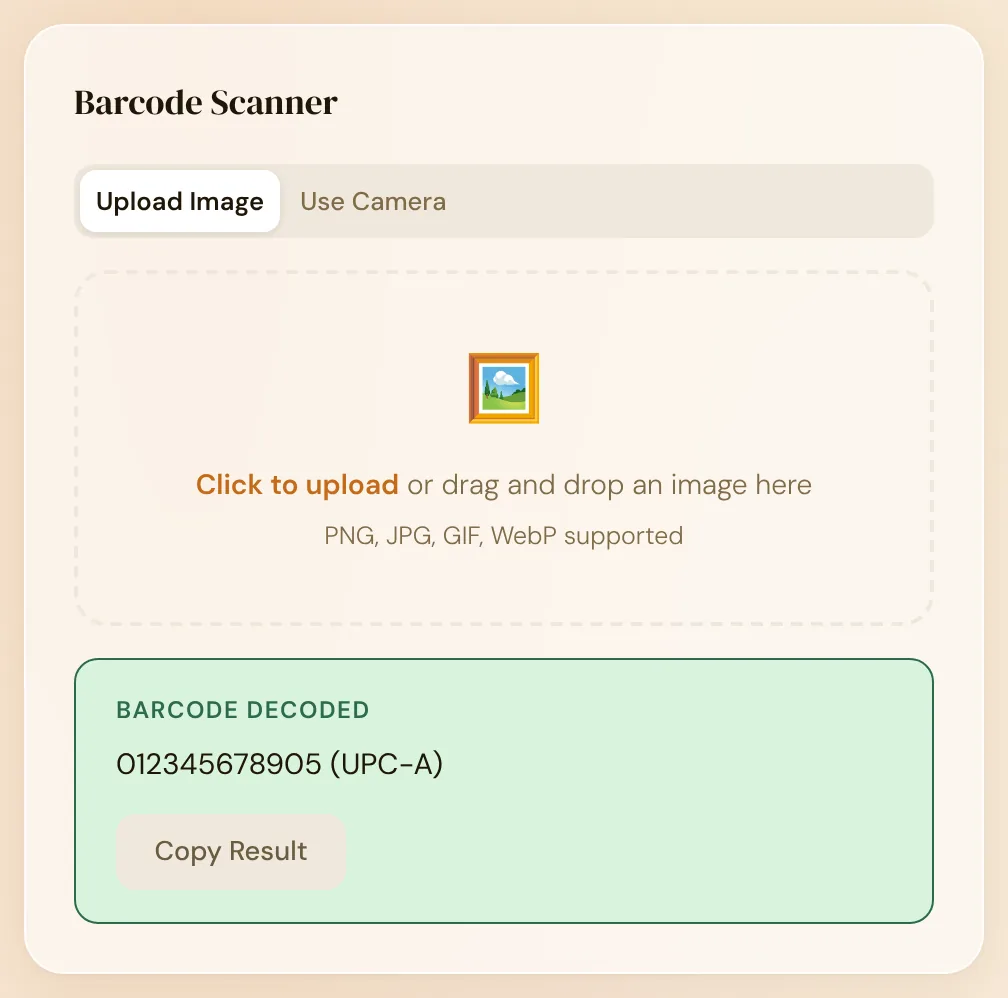
  3. The scanner shows the number and the type of barcode, for example 012345678905 (UPC-A). Tap Copy Result to copy it.
The Barcode Scanner after uploading a picture of a barcode: barcode decoded, 012345678905 (UPC-A), with a Copy Result button.
A made-up product barcode read from an uploaded picture: 012345678905, a UPC-A code.

The picture is read in your browser and never uploaded, so it's fine to use for parcel labels and anything else you'd rather keep to yourself.

Or point your camera at it

To scan something in front of you, switch to Use Camera and tap Start Camera. Your browser asks for permission first. The scanner uses the back camera, reads the first barcode it sees and then stops, so you can check the result before doing anything with it.

Hold the phone steady, let the barcode fill most of the frame and give the camera a second to focus. Moving closer works better than zooming.

Which barcodes it can read

The scanner is set up for the common straight-line barcodes and the main 2D codes:

  • Product barcodes: UPC-A, UPC-E, EAN-13 and EAN-8, the codes on most things you can buy in a shop.
  • Shipping and warehouse codes: Code 128, Code 39, Code 93, ITF and Codabar.
  • 2D codes: QR codes, Data Matrix, PDF417 and Aztec. For QR codes that hold a web address, the QR Code Scanner also gives you a link to open, and our guide to scanning a QR code from a screenshot covers checking where it leads first.

If your browser has a built-in barcode detector, the scanner uses it. If it doesn't, the scanner uses ZXing, an open-source barcode library, instead, so it isn't limited to one browser.

What the numbers on a product barcode mean

A product barcode usually holds a 12-digit UPC-A number or a 13-digit EAN-13 number. It identifies one particular product from one company, and the last digit is a check digit, worked out from the others, which lets scanners catch a misread. A few things the number doesn't do:

  • It doesn't say where the product was made. The first digits are often taken for a country code, but GS1, the organization that issues these numbers, answers plainly that the prefix does not show the country of origin. Companies can make their products anywhere.
  • It doesn't contain the price. GS1 says the description and price generally aren't in the barcode: it "represents the number that simply identifies the item uniquely". A shop looks the number up in its own system when it scans it at the till.
  • It can't prove a product is genuine. A barcode is a printed number, and a copy carries the same number as the real thing. If authenticity matters, buy from the brand or an authorized seller, or ask the brand.

To find out what a product is, copy the number and search for it. Results depend on what has been published online, so a number with no results isn't necessarily a fake.

Books are the easy case. The barcode on the back cover usually carries the book's ISBN, its 13-digit book number, which starts with 978 or 979, so searching for the number normally brings up the book itself, with its title and edition.

If it won't scan

  • Keep the whole barcode in the picture, including the blank margins on either side. Scanners use them to find where the code starts and ends.
  • Shoot it straight on and flat. A barcode wrapped around a bottle or on a crumpled bag gets distorted, so flatten the label or take the picture from directly in front.
  • Use good light and avoid glare. Shiny packaging reflects light; tilt it slightly or step away from the lamp.
  • Show one barcode at a time. The scanner reads the first code it finds, so crop the picture if there are several, as there often are on shipping labels.
  • For a barcode on a screen, take a screenshot instead of photographing it with another device. Screenshots are sharper.
  • For a barcode inside a PDF, turn the page into an image with PDF to PNG, then scan that.

Need to make a barcode instead of reading one? The Barcode Generator creates them in your browser, too.

Frequently asked questions

Can I scan a barcode without an app?

Yes. Open the Barcode Scanner in your browser, then upload a photo or screenshot of the barcode, or use your camera. The image is read on your device and isn't uploaded.

Does a barcode show where a product was made?

No. The first digits are often mistaken for a country of origin, but GS1, which issues the numbers, says the prefix doesn't show where a product was made.

Does scanning a barcode show the price?

No. The barcode holds a number that identifies the product. Shops look up the price in their own systems when they scan it.

Why won't my barcode scan?

Usually the picture is blurry, cropped too tightly, taken at an angle, or shows several barcodes. Use a sharp, straight-on picture with the whole barcode and its margins in view.